
The EasyEdmin Hybrid Model provides multiple ways to access the EasyEdmin Server depending on where the user is working.
For the best performance and reliability, it is important to use the appropriate connection method for the situation.
The basic principle is:
- Inside the Institute → Use the Local Network
- Outside the Institute → Use Remote Access through Static IP
Accessing EasyEdmin Inside the Institute #
When users are working within the Institute, EasyEdmin should preferably be accessed through the local LAN or WiFi network.
Users can connect to the EasyEdmin Server using:
- Server Auto Discovery, where available.
- The local IP address of the EasyEdmin Server.
This provides a direct connection between the user’s device and the EasyEdmin Server through the Institute’s local network.
- Why use the local network?
Using the local network provides:
🚀 Faster response for day-to-day ERP operations.
📶 Efficient use of the Institute’s local network.
🔌 Continued access to the EasyEdmin Server even when the Internet connection is temporarily unavailable.
📱 Mobile users can also connect to the EasyEdmin Server through the Institute’s WiFi network when using the EasyEdmin Mobile App.
Accessing EasyEdmin from Outside the Institute #
When an authorised user needs to access the Institute-hosted EasyEdmin Server from outside the Institute, the connection can be established through the Internet using a Static IP and appropriate router configuration.
This allows authorised users such as management, administrators, or staff working from home to access the EasyEdmin Server remotely.
- Typical remote-access flow
Remote User → Internet → Institute Router → EasyEdmin Server
🌐 Remote access should be used primarily when the user is outside the Institute.
Do Not Use Static IP for Users Inside the Institute #
This is an important point for Hybrid deployments.
Even when Static IP remote access has been configured, users working inside the Institute should not normally access EasyEdmin using the Static IP.
Instead, they should use the local network connection through Server Auto Discovery or the local IP address.
- Why?
When a user inside the Institute accesses the server using the Static IP, the connection may unnecessarily take the external Internet/remote-access path instead of using the direct local network connection.
If the Institute’s Internet connection is unavailable, this can cause EasyEdmin to appear inaccessible even though:
🖥️ The EasyEdmin Server is running.
📡 The Institute’s LAN is working.
🔗 Other computers on the local network can still communicate with the server.
Recommended Approach #
| User Location | Recommended Connection |
|---|---|
| 🏫 Inside Institute | Server Auto Discovery / Local IP / Institute WiFi |
| 🌐 Outside Institute | Static IP / Remote Access |
💡 Best Practice: Use the local network whenever you are inside the Institute. Use Static IP only when remote access is required from outside the Institute.
Internet Connectivity in the Hybrid Model #
Although normal local ERP operations do not require the Internet, Internet connectivity remains important for several EasyEdmin services.
The Internet is required for activities such as:
🔄 Synchronization between the Institute Server and EasyEdmin Cloud.
🏠 Remote access to the Institute Server.
💬 Messaging and other services that require Internet connectivity.
☁️ Services that require communication with EasyEdmin Cloud or external services.
Therefore, Internet connectivity is not required for basic local ERP access, but it remains important for the complete Hybrid ecosystem.
What Happens When the Internet Is Unavailable? #
One of the major advantages of the Hybrid Model is that the Institute’s core ERP operations can continue locally when the Internet connection is temporarily unavailable.
🏫 Institute Users: Users connected through the Institute’s LAN/WiFi can continue accessing the EasyEdmin Server and performing normal local ERP operations.
📱 Student/Parent App: The Student/Parent App can continue to provide access to information already synchronised with EasyEdmin Cloud, as long as the user’s device has Internet connectivity.
However, services that require direct communication with the Institute Server cannot be accessed while the Institute Server is unreachable from the user’s device.
Similarly, new data cannot be synchronised between the Institute Server and EasyEdmin Cloud until Internet connectivity is restored.
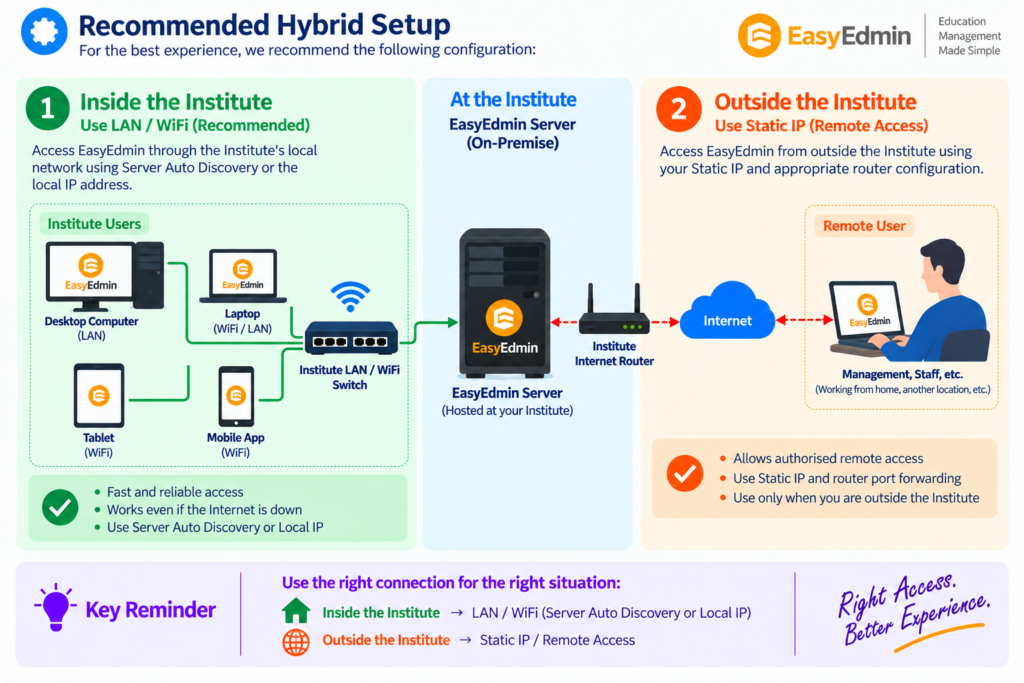
Recommended Hybrid Setup #
Key Takeaway #
The Hybrid Model provides flexibility by allowing EasyEdmin to be accessed through the local network when users are inside the Institute and through remote access when users are outside the Institute.
Use the right connection for the right situation:
🏫 Inside the Institute → LAN / WiFi
🌐 Outside the Institute → Static IP / Remote Access
Following this approach provides the fastest, most reliable, and most efficient experience with EasyEdmin Hybrid.


